Installation
Getting started with QAlity takes less than 2 minutes. There is no desktop app to download - everything runs through a Chrome extension.
Setup steps
When you click Start recording for the first time in QAlity, a popup appears that guides you through 2 steps to set up the recorder.
Step 1 - Install the Chrome extension
-
Open QAlity and start recording
Go to app.qality.dev, sign in, open or create a test case, and click Start recording. A popup titled QAlity Recorder will appear.
-
Click Install from Chrome Web Store
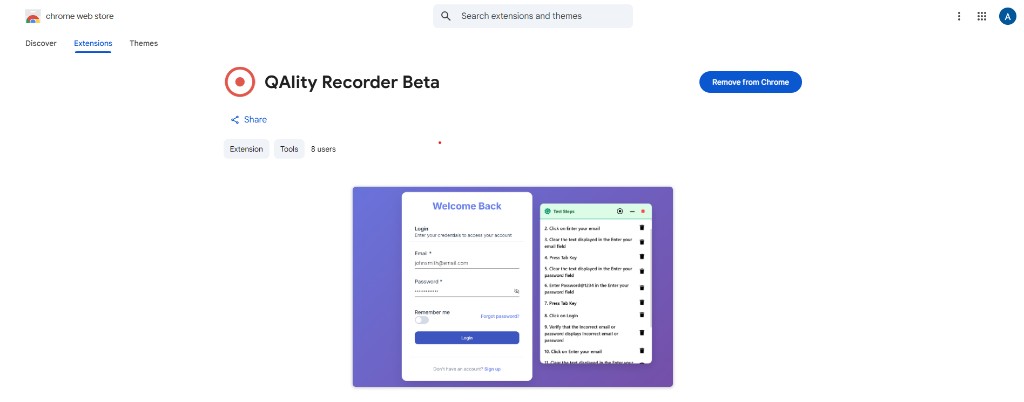
In the popup click the Install from Chrome Web Store button. This opens the QAlity Recorder listing. Click Add to Chrome and then Add extension to confirm.
Install QAlity RecorderAlready installed? Go back to QAlity and refresh the window. The popup will move to Step 2 automatically.
Step 2 - Allow in Incognito
After installation is confirmed the popup moves to Step 2.
-
Click Open extension settings
In the popup click Open extension settings. This opens chrome://extensions directly to the QAlity Recorder settings page.
-
Turn on Allow in Incognito
In the extension settings find the Allow in Incognito toggle and turn it on. QAlity shows a preview image in the popup highlighting exactly where this toggle is with a red outline.
Tests run in Incognito so cookies and stored data do not carry over between runs. This gives every test a clean consistent starting state.
-
You are ready
Go back to QAlity. The recorder is now set up. Click Start recording to begin your first test. QAlity will open your website in an Incognito window and start capturing your actions.
You can also skip the Incognito step by clicking I don't want to enable this in the popup. Recording will still work without it.
If your organization restricts Chrome extensions, ask your IT admin to allowlist the QAlity Recorder extension ID: pookkcjcilhpikkomgbipdhpebbikjoe
What permissions the extension needs
When you install QAlity Recorder, Chrome will show a permissions prompt. Here is what each permission is for:
QAlity Recorder does not collect personal data, does not run outside of active recording sessions, and does not access any pages unless you start a recording.