Installation
Getting started with QAlity takes less than 2 minutes. There is no desktop app to download - everything runs through a Chromium extension (Chrome, Edge, or Brave) installed from the Chrome Web Store.
After setup, follow Your first test and read the Recorder guide. See the FAQ if the extension popup does not appear.
QAlity supports Chromium-based browsers only (Chrome, Edge, Brave). Firefox and Safari are not supported for recording or execution.
Setup stepsSetup steps
When you click Start recording for the first time in QAlity, a popup appears that guides you through 2 steps to set up the recorder.
Step 1 - Install the Chrome extensionStep 1 - Install the Chrome extension
-
Open QAlity and start recording
Go to app.qality.dev, sign in, open or create a test case, and click Start recording. A popup titled QAlity Recorder will appear.
-
Click Install from Chrome Web Store
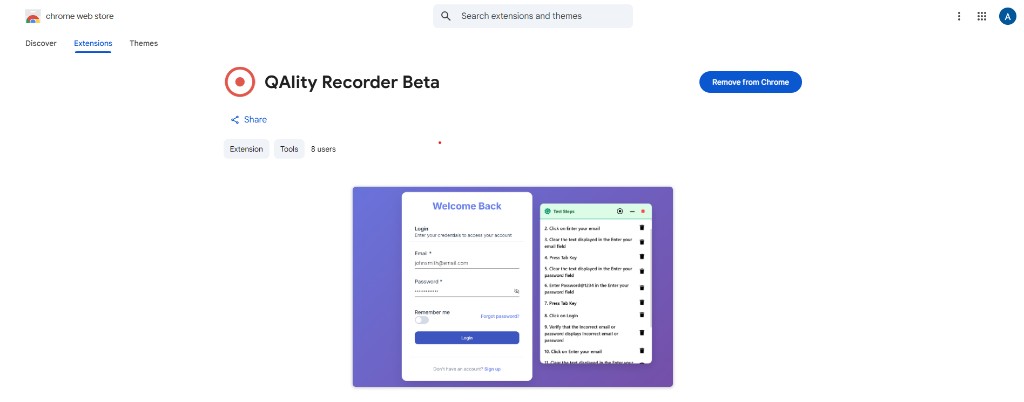
In the popup click the Install from Chrome Web Store button. This opens the QAlity Recorder listing. Click Add to Chrome and then Add extension to confirm.
Install QAlity RecorderAlready installed? Go back to QAlity and refresh the window. The popup will move to Step 2 automatically.
Step 2 - Allow in IncognitoStep 2 - Allow in Incognito
After installation is confirmed the popup moves to Step 2.
-
Click Open extension settings
In the popup click Open extension settings. This opens chrome://extensions directly to the QAlity Recorder settings page.
-
Turn on Allow in Incognito
In the extension settings find the Allow in Incognito toggle and turn it on. QAlity shows a preview image in the popup highlighting exactly where this toggle is with a red outline.
Recommended: tests run in Incognito so cookies and stored data do not carry over between runs. This gives every test a clean consistent starting state. You can skip this step by clicking I don't want to enable this in the popup. Recording and running test cases still work without Incognito mode.
-
You are ready
Go back to QAlity. The recorder is now set up. Click Start recording to begin your first test. If Incognito is enabled, QAlity will open your website in an Incognito window and start capturing your actions.
If your organization restricts Chrome extensions, ask your IT admin to allowlist the QAlity Recorder extension ID: ebbjiajiinfndpodkpnemedmjolpeacp
What permissions the extension needsWhat permissions the extension needs
When you install QAlity Recorder, Chrome will show a permissions prompt. Here is what each permission is for:
QAlity Recorder does not collect personal data, does not run outside of active recording sessions, and does not access any pages unless you start a recording.