Checkout form validation
Submit with empty required fields and confirm inline errors appear without a full page reload.
Build with confidence
UI testing confirms that layouts, components, and interactions behave as users expect in the browser. Done well, it catches visual regressions and broken controls before they reach production.

Quick answer
UI testing validates the presentation and interaction layer of a web application: what users see and click, not the underlying API contracts alone.
For web products, UI testing means exercising forms, navigation, modals, tables, and responsive layouts in a real browser. Testers confirm buttons submit, validation messages appear, menus open, and critical content renders at expected breakpoints.
UI tests differ from unit tests because they span multiple components and often depend on realistic data and routing. They are narrower than full end-to-end journeys when you focus on a single screen or widget, but they still run through the browser like a user would.
The workflow
Treat UI testing as a repeatable checklist tied to design and accessibility expectations.
List controls, states (empty, error, loading), and breakpoints you must cover. Avoid boiling the ocean-start with shared components used across the app.
Prefer visible labels, roles, and accessible names over brittle CSS paths. Stable selectors reduce maintenance when designers refactor markup.
Assert success toasts, inline validation, disabled buttons, and empty tables, not only the golden path.
Execute UI checks in the same browser profile and viewport size so results are comparable run to run.
When a UI assertion fails, capture what the browser rendered so triage separates true defects from timing or data issues.
In practice
Common UI testing scenarios on web applications.
Submit with empty required fields and confirm inline errors appear without a full page reload.
At mobile width, open the hamburger menu and verify links route to the correct pages.
Click column headers and page controls; assert row order and counts update in the UI.
Open a dialog, tab through controls, and confirm primary actions are reachable and the overlay dismisses correctly.
Best practices
Keep UI suites fast, readable, and resilient to design iteration.
Assert labels, counts, and messages users see, not hidden DOM attributes that designers may change.
Cover design-system widgets in focused cases; reuse confidence instead of re-checking the same button styles in every flow.
Wait for elements to be visible or stable before interacting; fixed delays hide flakes until load increases.
Run a thin UI smoke slice after each release before kicking off deeper regression.
Link design specs or acceptance notes so failures are judged against intent, not personal preference.
From guide to repeatable system
UI testing stays maintainable when you record real browser interactions, run them in the cloud, and let Auto-Heal recover from selector changes instead of rewriting scripts after every redesign.
Compare Selenium vs QAlity API Testing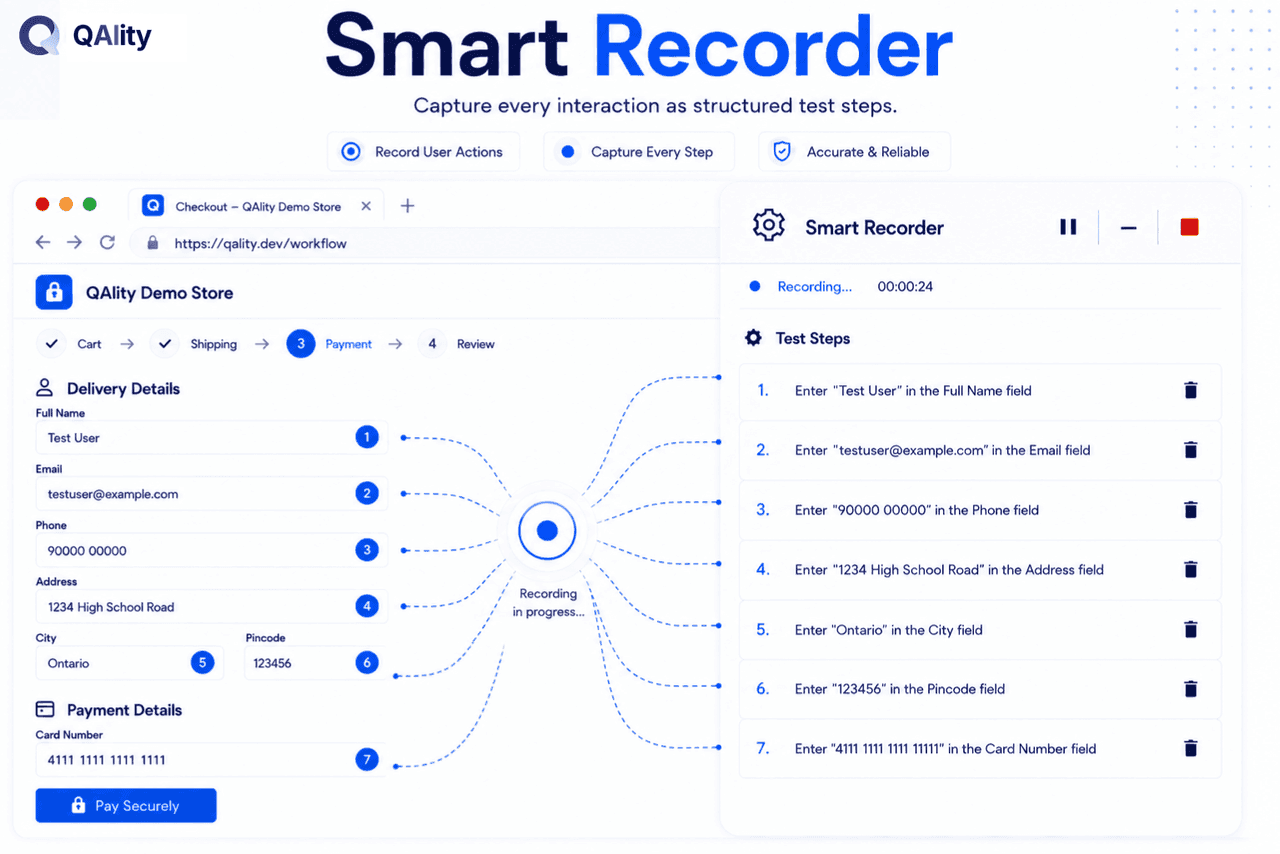
The challenge
Manual UI checks miss subtle layout and interaction bugs across releases
How QAlity helps
Record navigation, form fills, and visibility checks in the browser. Steps stay readable for designers and QA alike, with no WebDriver boilerplate to maintain after each UI refresh.
Chrome recorderThe challenge
UI suites break when buttons move or CSS classes change
How QAlity helps
When a shared component shifts, Auto-Heal finds the live element and applies a corrected selector so the run continues instead of failing on stale XPath.
How Auto-Heal worksThe challenge
Stakeholders need proof of what the browser showed when a step failed
How QAlity helps
Each run stores pass/fail per step with screenshots and logs in one timeline, so UI defects are obvious without reproducing locally.
Execution history & reports
 Questions, answered
Quick answers to the most common questions teams have before getting started with QAlity.
UI testing often includes interaction and state checks, not only pixel comparisons. Visual regression adds screenshot diffing; many teams combine both for layout-sensitive areas.
Yes. QAlity's Chrome recorder captures clicks, inputs, and assertions in the browser. You edit steps visually and run them in QAlity cloud with Auto-Heal for selector drift.
No. QAlity automates web applications in browsers only. Use it for responsive web UI in Chrome and cloud browsers, not iOS or Android native apps.
Start with one critical flow
Record a screen flow, run it in the cloud, and see step-level screenshots when something breaks.