Sign in to QAlity
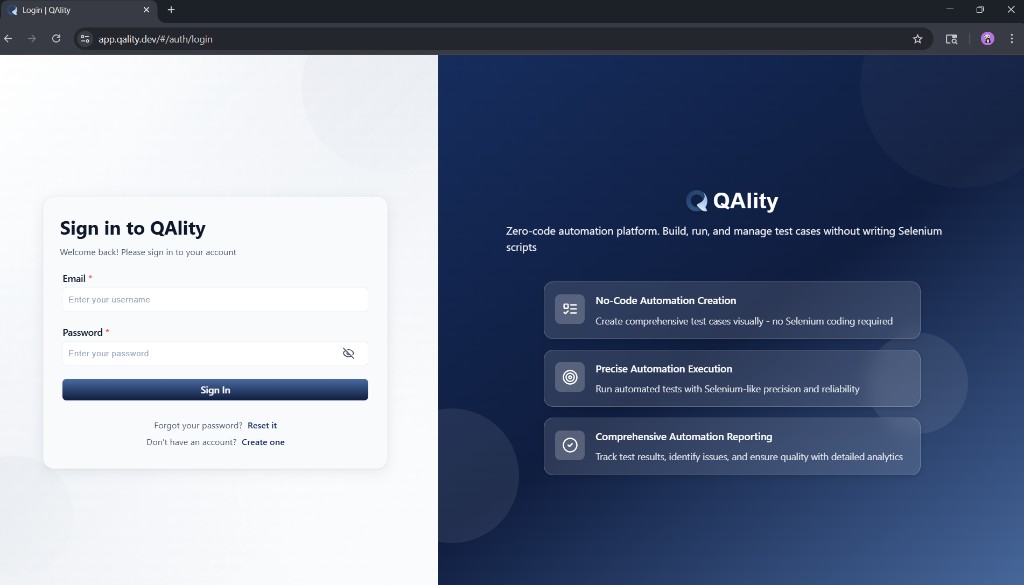
Sign in to your QAlity account at https://app.qality.dev/#/auth/login.
Steps
-
Go to the login page
Open https://app.qality.dev/#/auth/login in Chrome.
-
Enter your email
Type the email address you used when registering your QAlity account into the Email field.
-
Enter your password
Type your password into the Password field. Click the eye icon on the right to show or hide your password.
-
Click Sign In
Click the Sign In button. You will be taken straight to your QAlity dashboard.
After signing in
- You will land on the QAlity dashboard where you can see all your Test Cases, Test Suites, Test Plans and recent runs
- Your session stays active as long as your browser is open
- To sign out, go to your account menu in the top right corner and click Sign Out
If sign in fails
- Double check your email address is correct - it must match exactly what you registered with
- Make sure your password is correct - passwords are case sensitive
- If you have forgotten your password click Reset it below the Sign In button
- If your account was created by an admin via invite, use the credentials from your invite email
Other options on this page
- Forgot your password? - Click Reset it to go to the account recovery page and receive a reset link by email.
- No account yet? - Click Create one to go to the registration page and set up a new account.
Use the same email and password you entered when you first registered. If you cannot sign in, use the account recovery page to reset your password.